

Setting up your domain
When you set up your account for the first time, you need to configure a sending domain before you can start sending emails. A sending domain is the domain that appears in your "from" address - for example, newsletter@yourdomain.com.
Since Sendfully sends emails on your behalf, we need to verify that you own the domain. Here's how to set it up in just a few steps.
Adding your domain
During the onboarding flow, you'll be asked to enter a domain to use for sending. You can add any domain or subdomain here, as long as you own it and can configure its DNS records through your domain registrar.
We recommend using a subdomain rather than sending from your root domain (here's why). For example, use mail.yourdomain.com or newsletter.yourdomain.com instead of yourdomain.com.
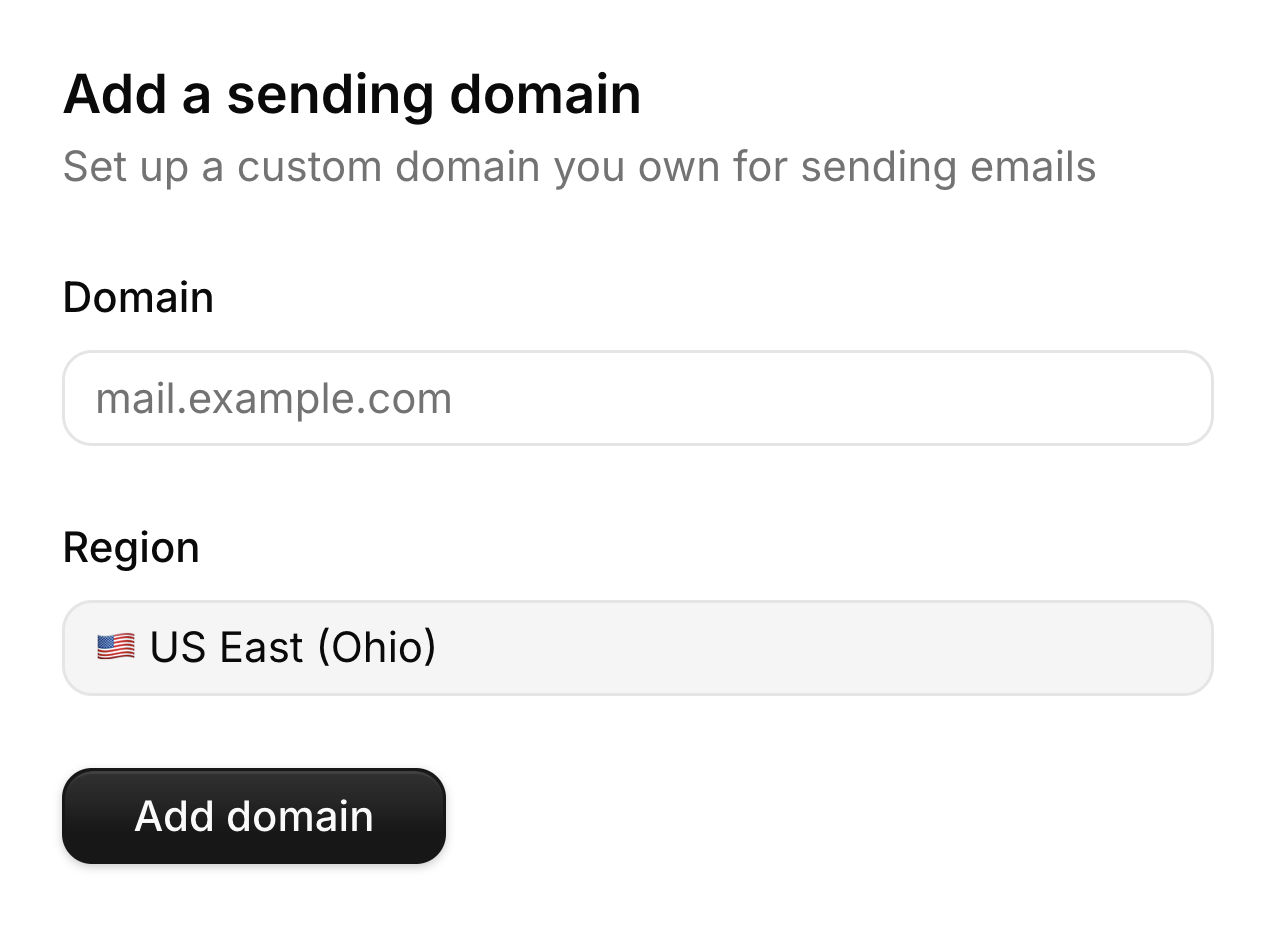
You can also add a domain at any time by following these steps:
- Navigate to Settings → Sending domain in your Sendfully dashboard
- Click Add sending domain
- Enter your domain name
- Click Add domain to continue
Verifying your domain
After adding your domain, Sendfully will provide DNS records that you need to add through your domain provider (such as GoDaddy, Namecheap, Cloudflare, or Route 53).
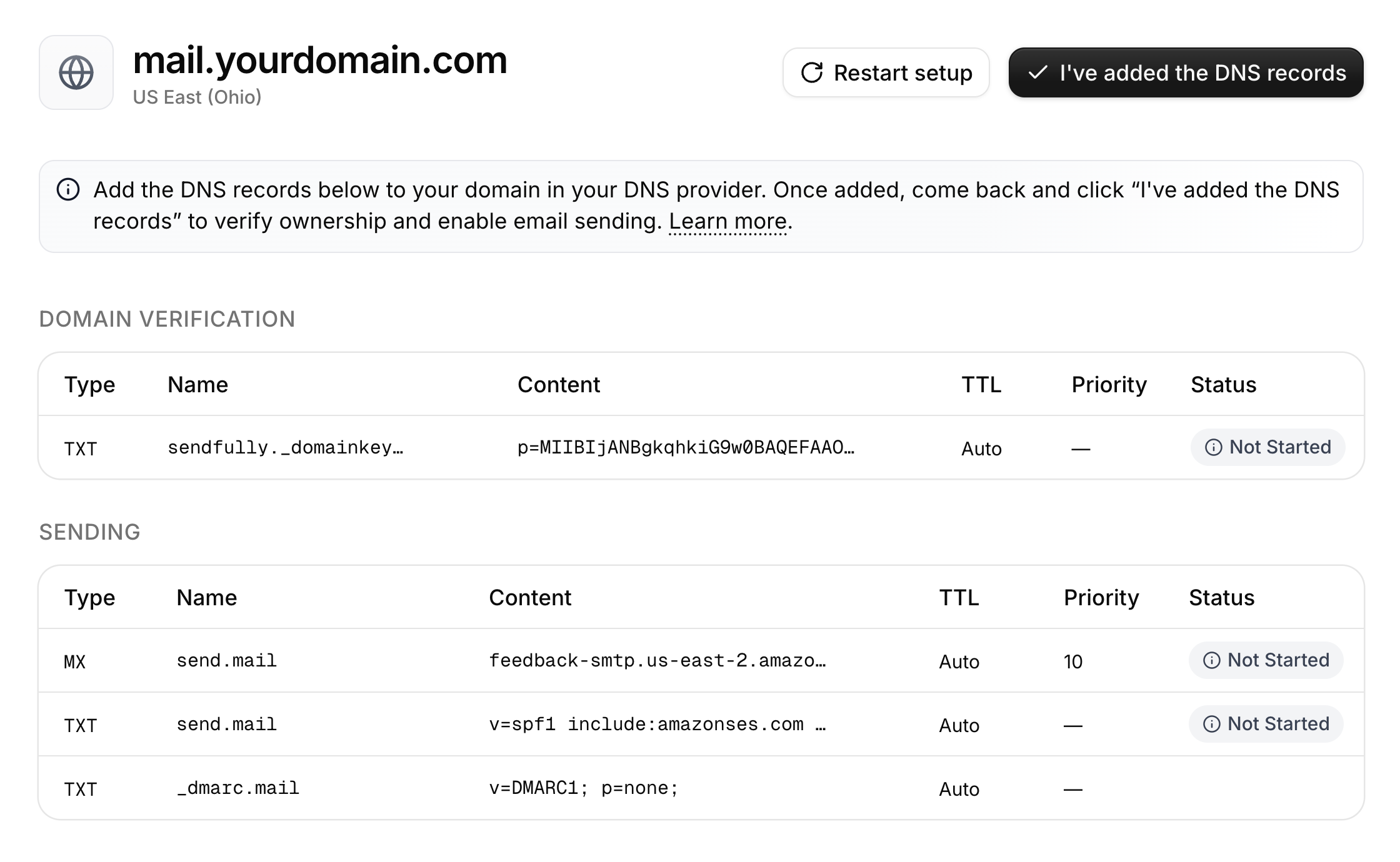
There are four records in total:
| Type | Name | Purpose |
|---|---|---|
| TXT | sendfully._domainkey | DKIM: Verifies you own this domain and adds a digital signature to your emails so inboxes trust them. |
| MX | send | Return Path: Lets Sendfully receive bounce notifications so we can keep your list healthy. |
| TXT | send | SPF: Authorizes Sendfully to send emails on your behalf, helping prevent spam impersonation. |
| TXT | _dmarc | DMARC: Tells inbox providers what to do if an email fails authentication - improving your deliverability. |
If you're using a subdomain like mail.example.com, the record names will include your subdomain - for example, sendfully._domainkey.mail. Sendfully will show you the exact names to use.
Adding your DNS records
Copy and paste each record into your domain registrar. Use the record type (TXT, MX) shown in the table above, not the record name (DKIM, SPF, etc.).
For registrar-specific instructions, see the guides below:
Once you've added the records through your domain provider, click I've added the DNS records.
DNS records can take up to a few hours to verify, but it often completes within an hour. You may see only some of your records verify while others are still pending - this is very normal. Just check back later and you'll see the final state.
If you need to return to your domain settings, navigate to Settings → Sending domain. You'll see the current status of your domain as well as available actions.
Troubleshooting
Verification is taking too long
- Double-check that you've added the records exactly as shown - make sure there are no extra quotes or spaces, and that the entire value is copied
- DNS providers often add the domain automatically - if your domain is
example.com, you may need to enter justsendfully._domainkeyinstead ofsendfully._domainkey.example.com
Records not found
- Use a DNS lookup tool to verify your records are published
- Contact your domain provider if records aren't appearing after 24 hours
Stuck or have a question? Just shoot us an email at support@sendfully.com 🙂
Next steps
Once your domain is verified, you're ready to: