

Sending your first email
You've set up your account, verified your domain, and added some contacts - now it's time to send your first email! This guide walks you through creating a broadcast, writing effective content, and hitting send.
Email best practices
Great emails get read. Here are a few tips to help yours land in the inbox and connect with your readers.
Keep it short. Most people skim emails on their phones. Aim for 200-500 words and focus on one clear message per email. Keep subject lines under 50 characters so they won't get cut off on mobile.
Write naturally. Certain phrases can trigger spam filters. Avoid overusing words like "free," "act now," "limited time offer," and "guaranteed." Be specific instead - rather than "Act now!", try "Reply by Friday to join us."
Balance your content. Aim for 90% valuable content (tips, updates, stories) with just 10% promotion. Aim for at least 60% text and less than 40% images. Try to limit your emails to 2-3 links max.
To learn about our sending standards, see our Acceptable Use Policy.
Step 1: Create a new broadcast
Head to the Broadcasts page and click Create broadcast.
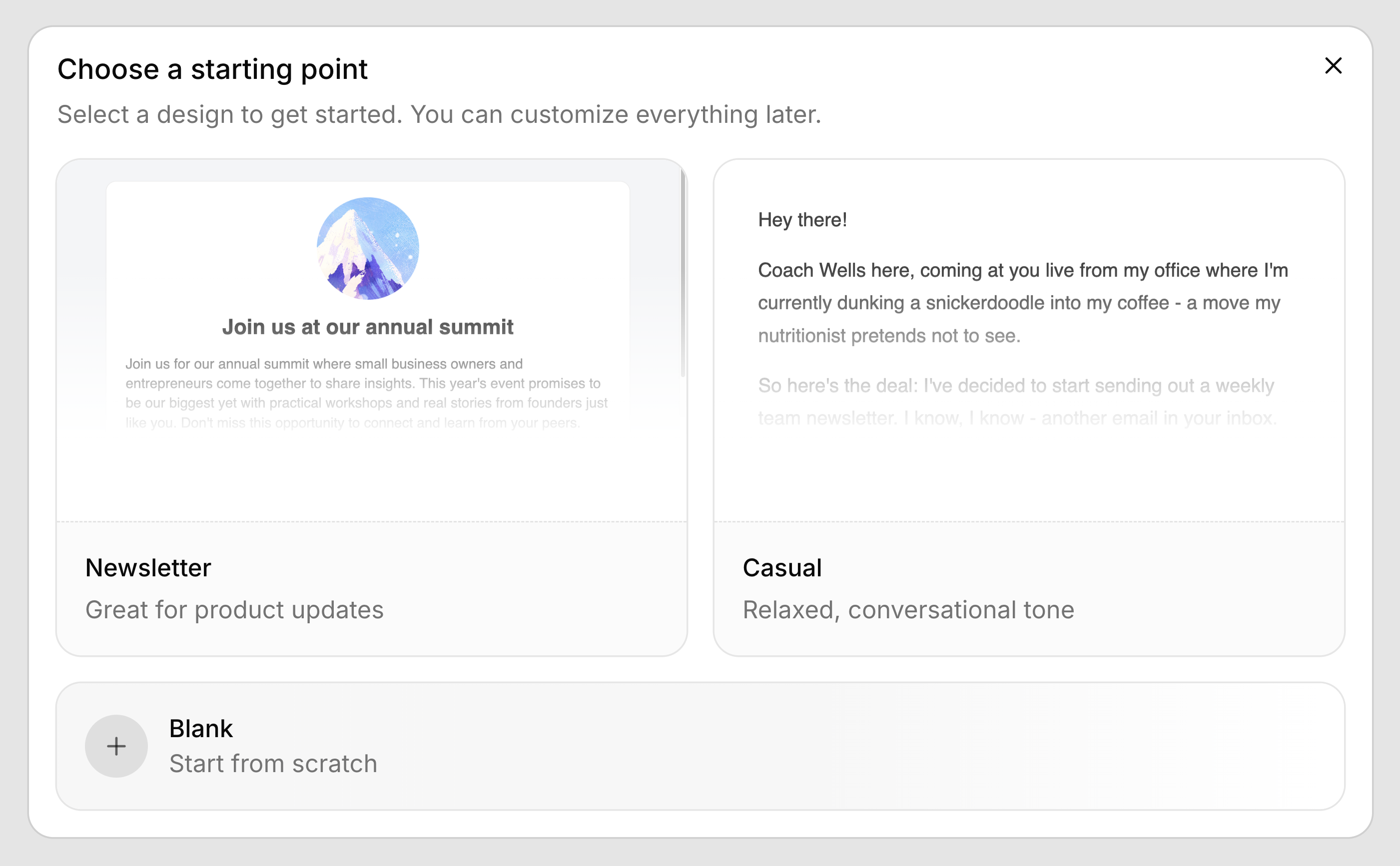
You'll see a few options to get started:
- Blank – Start with an empty canvas
- Newsletter – A pre-designed newsletter layout
- Casual – A simple, conversational template
Pick one, or start blank if you prefer to build from scratch.
Step 2: Configure your settings
Before writing, let's set up the basics. Click the Settings button in the header.
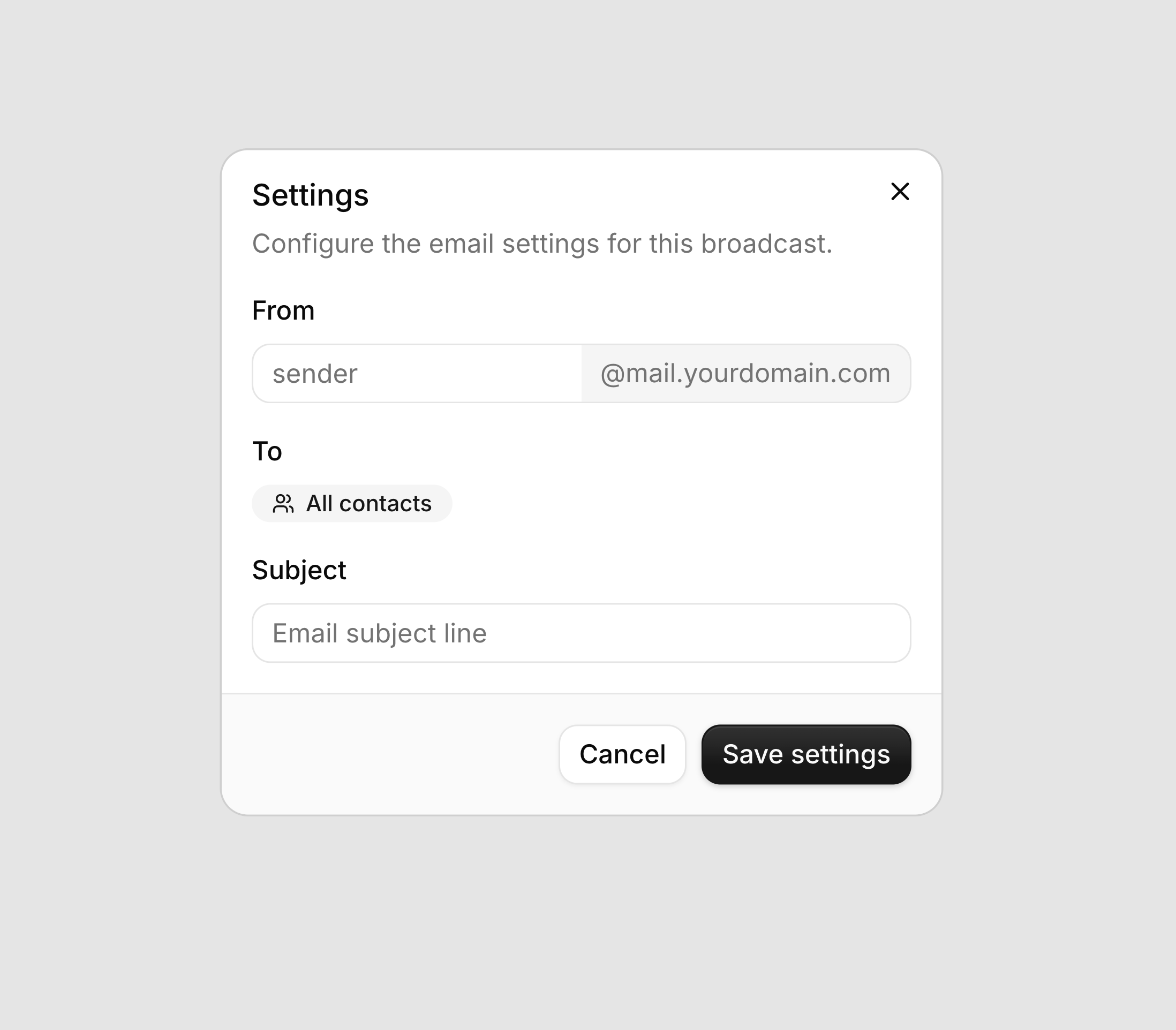
Fill in these fields:
- From: Enter the username portion of your sending address (for example, "hello" for
hello@yourdomain.com). Emails from a person tend to get better responses than those from a generic address. In Sendfully's case, I send emails fromtim@sendfully.com. - Subject: Write a clear, compelling subject line.
Your audience defaults to All contacts - all of your subscribed contacts will receive the broadcast.
Step 3: Personalize with contact properties
Make your emails feel personal by using contact properties. These are dynamic placeholders that get replaced with each contact's actual data when the email is sent.
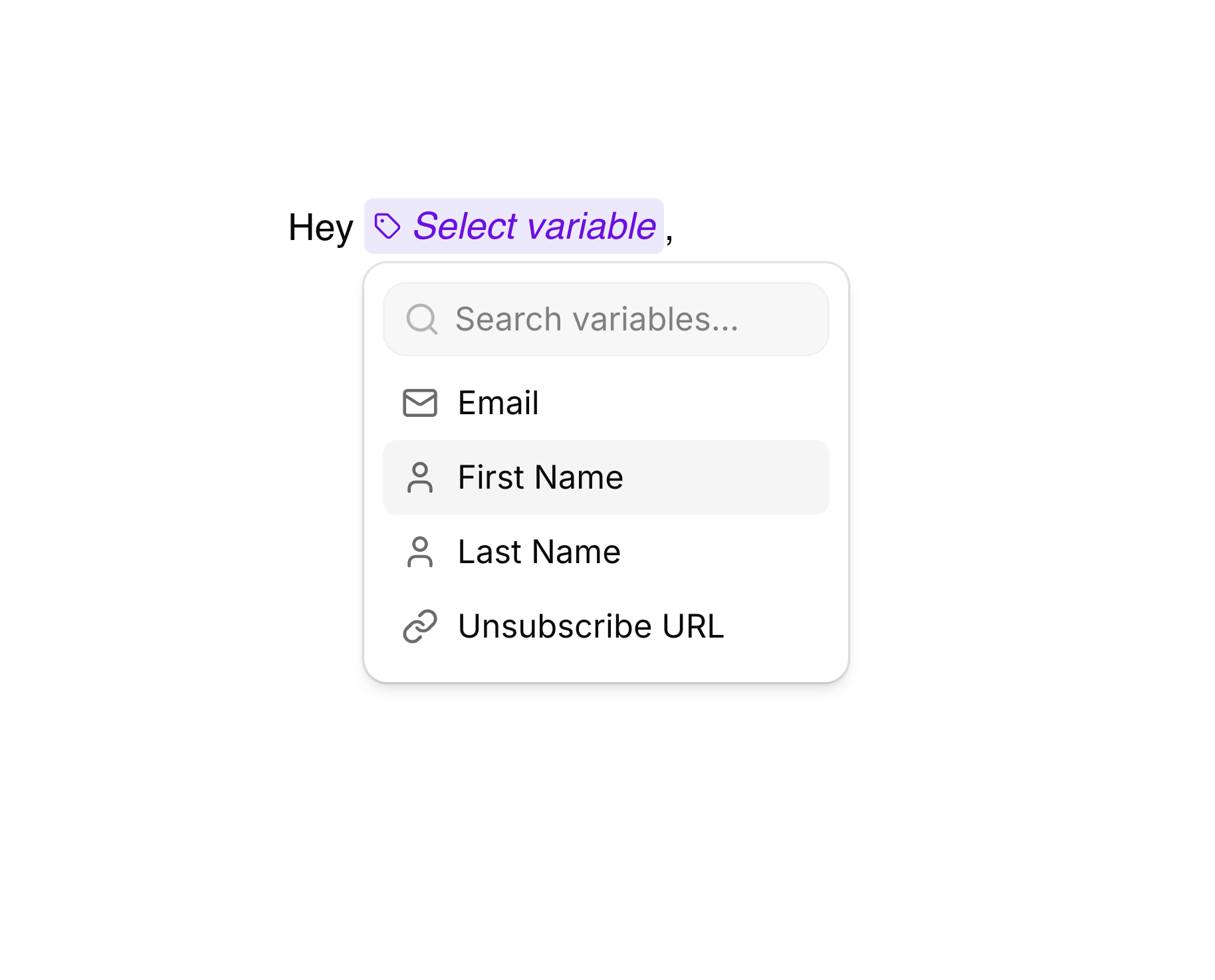
To insert a variable, place your cursor where you want it and either:
- Type
{{to open the variable picker - Click the Insert contact property button (braces icon) in the toolbar
Built-in variables include:
| Variable | What it inserts |
|---|---|
| Contact's email address | |
| First Name | Contact's first name |
| Last Name | Contact's last name |
| Unsubscribe URL | Unsubscribe link for the contact |
Adding fallback values
What if a contact doesn't have a first name? After selecting a variable like First Name, a second step appears where you can enter a fallback value. Type the fallback (like "there") and the variable displays as "First Name | there" in the editor - so if your contact has the first name Sarah, you'll get "Hi Sarah!". If your contact doesn't have a first name filled out, you'll get "Hi there!".
Step 4: Send a test email
Before sending to your entire list, preview how your email looks in real inboxes. Click the Test email button in the header.
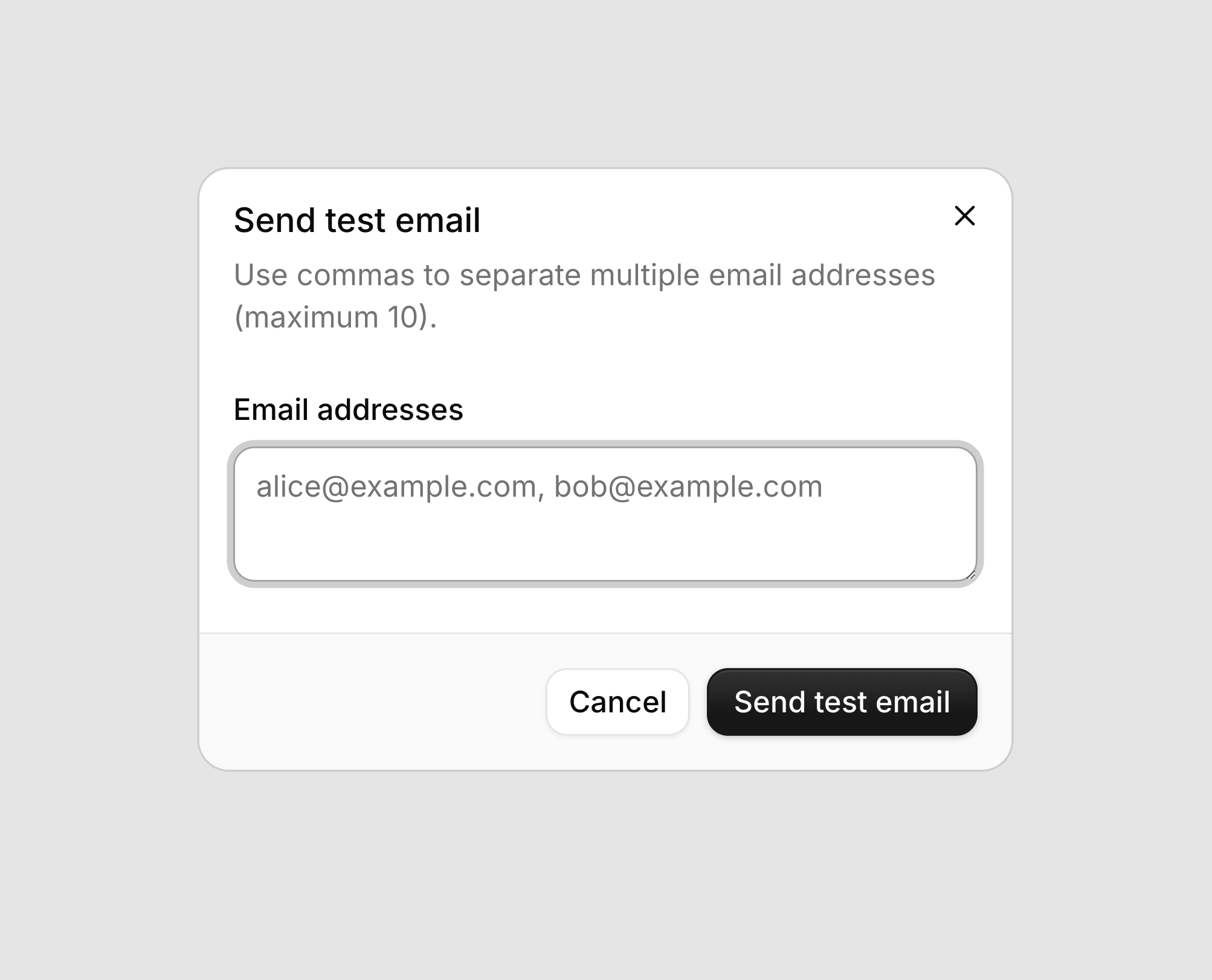
Enter one or more email addresses, then click Send test email.
Test emails arrive with a [Test] prefix in the subject line so you can easily spot them. Check how the email looks on both desktop and mobile - most of your readers will be on their phones!
Step 5: Send your broadcast
Happy with how everything looks? Time to send! Click the Send button in the header to open the send sheet.
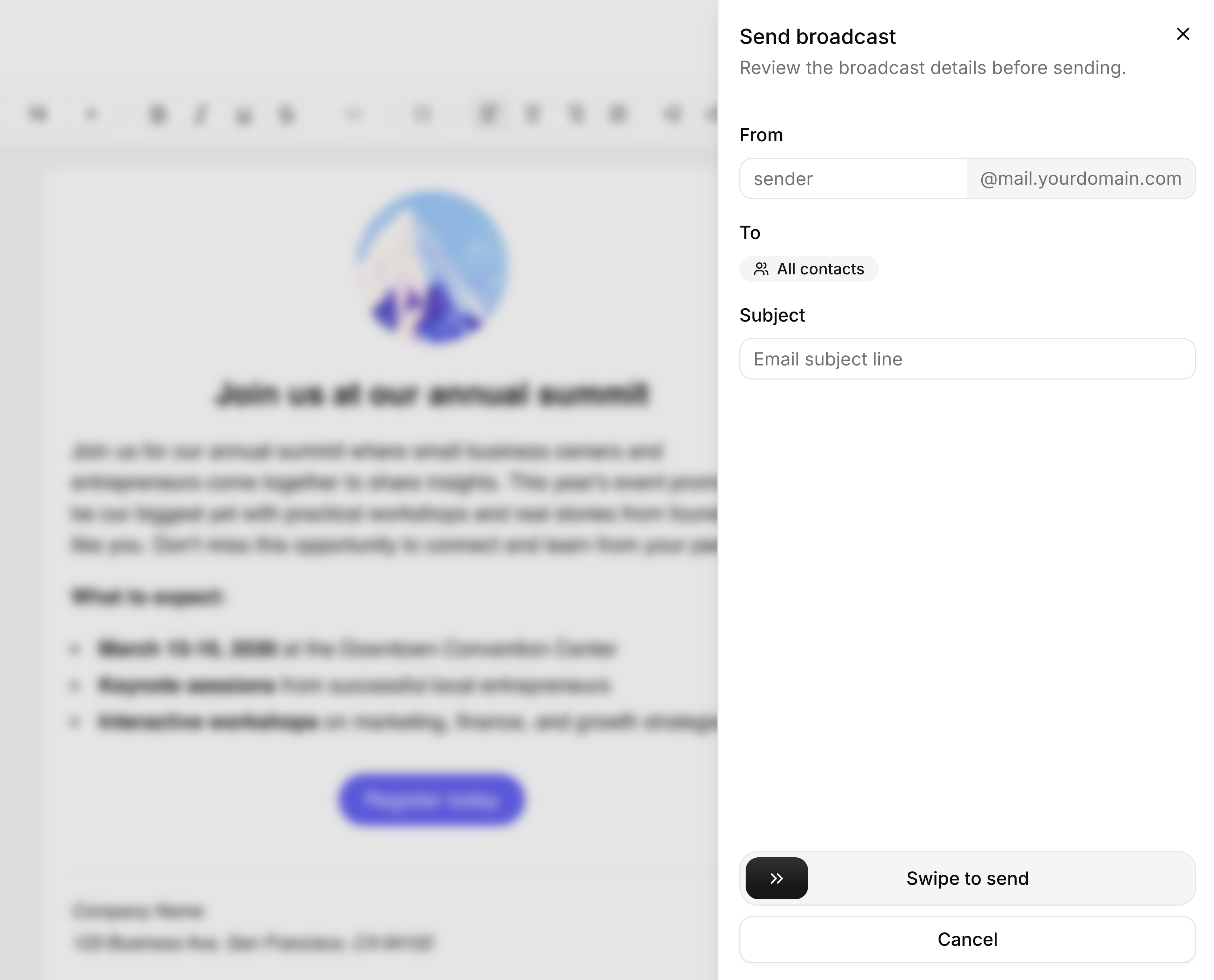
Review your broadcast details, then swipe the Swipe to send button to confirm.
And that's it - confetti time! Your broadcast is now queued and will be sent shortly.
What's next?
- Check the Email Log to see delivery status for each email
- View your broadcast analytics to track opens and clicks
Questions or feedback? Click the Feedback button in the top right corner - we'd love to hear from you.